
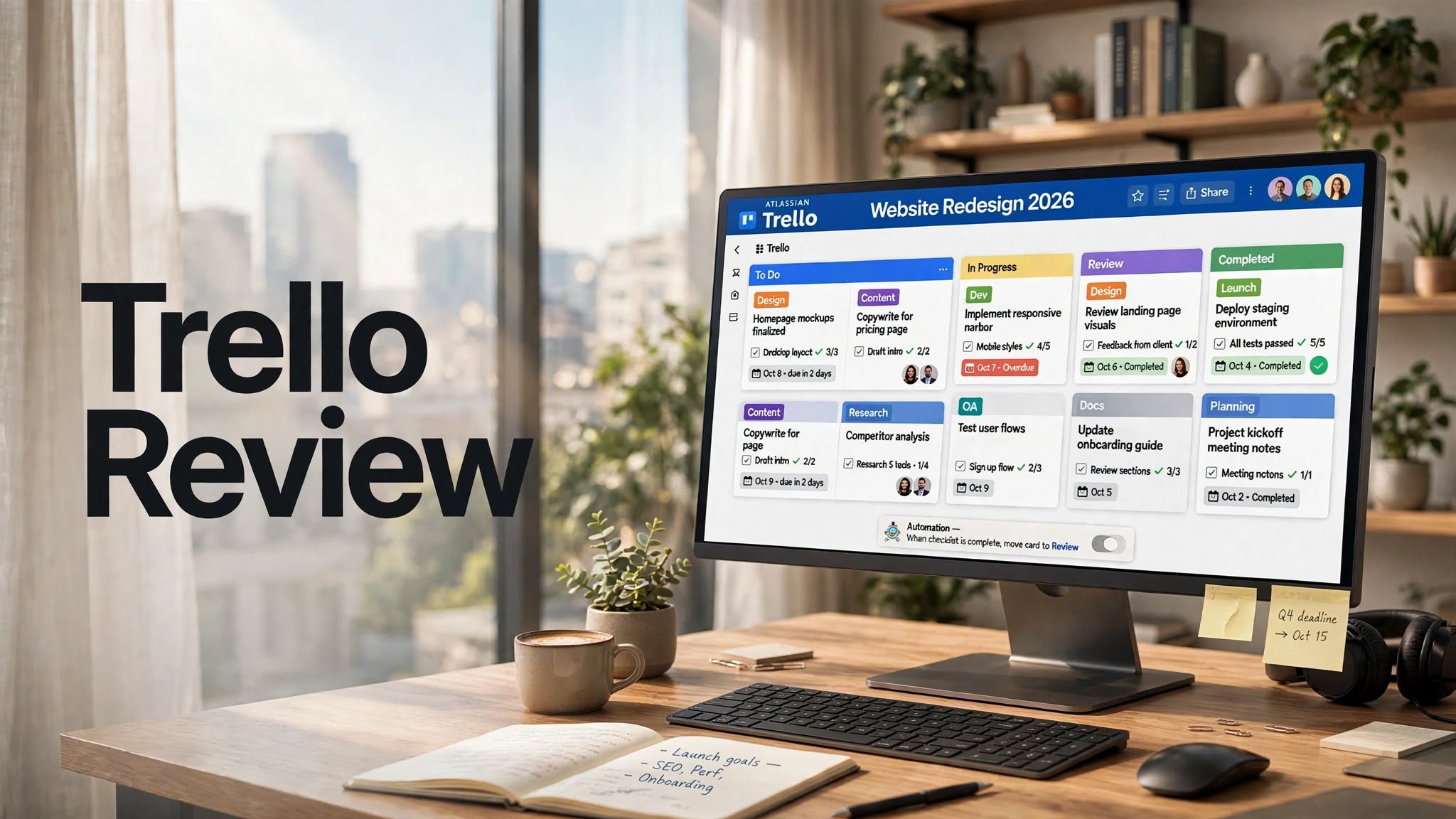

Trello is a popular project management and productivity platform designed to help individuals and teams organize tasks, projects, workflows, and collaboration in a visual workspace. Its card-and-board approach makes it easy to see what needs to be done, who is responsible for a task, and how work is progressing.
Unlike traditional project management software that can feel complicated, Trello focuses on a simple visual structure based around boards, lists, and cards. This makes it useful for everything from personal to-do lists and content calendars to team projects and business workflows.
In this Trello review, we’ll look at its main features, pricing, automation tools, advantages, disadvantages, alternatives, and overall usefulness.
What Is Trello?

Trello is a work management and project collaboration platform from Atlassian. It uses boards to organize projects, lists to represent stages or categories, and cards to represent individual tasks or pieces of work.
A typical Trello board might contain lists such as To Do, In Progress, Review, and Completed. Cards can then be moved between these lists as work progresses.
Users can add descriptions, checklists, due dates, attachments, labels, comments, and members to cards, making each card a central location for task-related information.
Trello Highlights
- Visual Kanban-style boards
- Custom lists and cards
- Task assignments
- Due dates and reminders
How Does Trello Work?
Trello organizes work through a simple hierarchy of workspaces, boards, lists, and cards.
A board represents a project or workflow. Lists divide the board into different stages or categories, while cards represent individual tasks.
For example, a marketing team could create a content board with lists for ideas, writing, editing, scheduled content, and published articles. Each article can be represented by a card containing its deadline, assigned writer, checklist, notes, attachments, and comments.
As the article moves through the workflow, the team can drag the card from one list to another.
This visual approach makes Trello particularly easy to understand for teams that prefer seeing their workflow rather than managing projects through complicated menus.
Trello Features
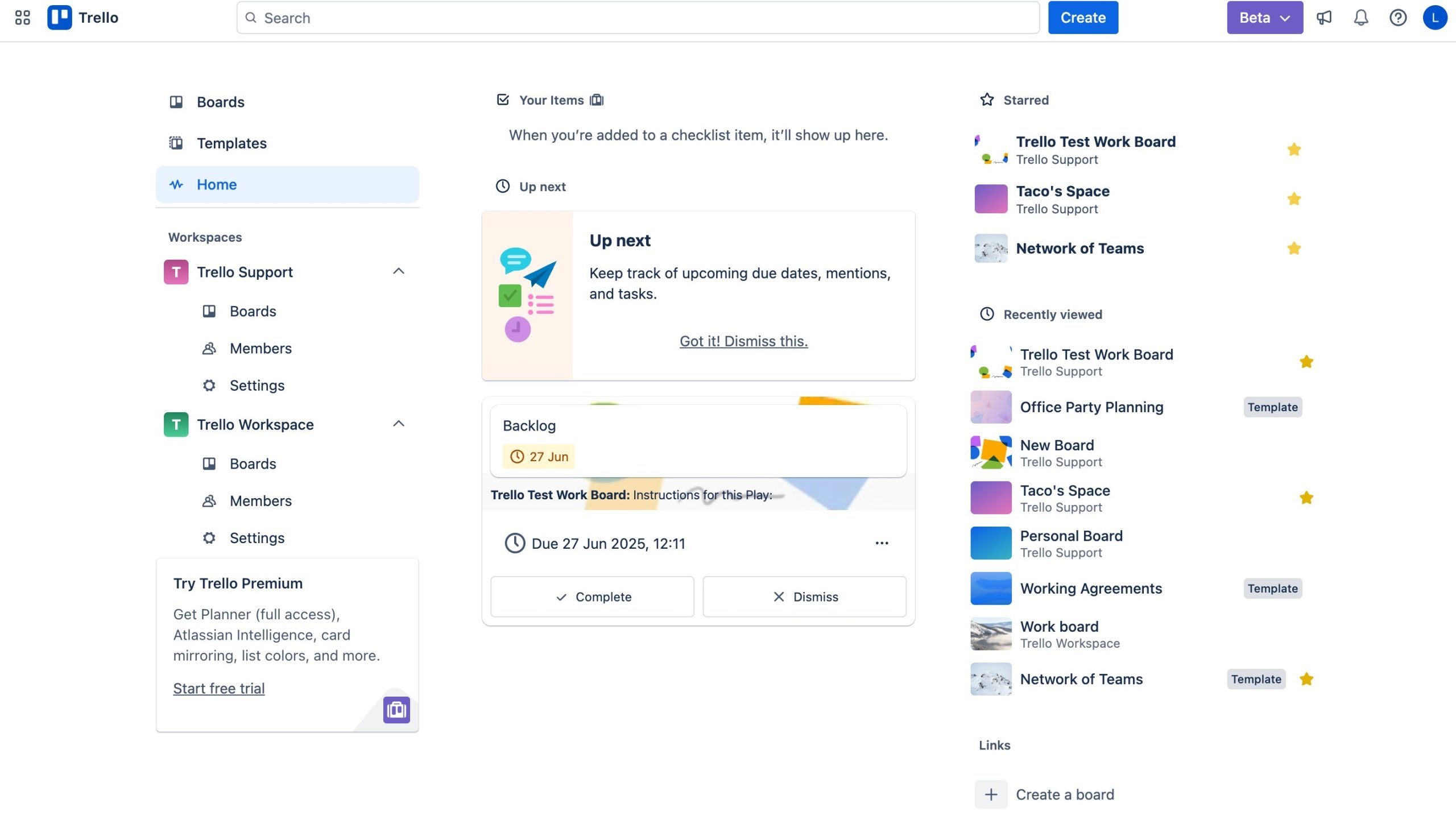
Boards, Lists and Cards
Boards are the foundation of Trello. Users can create boards around projects, departments, clients, personal goals, or recurring workflows.
Lists organize the workflow, while cards contain the actual tasks and project information.
Cards can include descriptions, checklists, due dates, labels, members, attachments, comments, and other details.
Task Management
Trello provides straightforward tools for creating and managing tasks.
Team members can assign cards, add deadlines, create checklists, and track progress. This makes it possible to manage both simple personal tasks and collaborative projects.
Kanban Workflow
Trello’s visual board structure is closely associated with Kanban-style project management.
Teams can create workflow stages and move cards from one stage to another as tasks progress. This provides an easy-to-understand overview of the current state of a project.
Checklists
Checklists can be added to cards to break larger tasks into smaller steps.
For example, a website launch card could contain checklist items for content, design, development, testing, and publishing.
Due Dates and Reminders
Cards can have due dates and reminders to help teams keep track of deadlines.
This is useful for managing time-sensitive projects, recurring tasks, content calendars, client work, and other workflows.
Labels and Organization
Labels can be used to categorize cards based on priority, department, task type, project area, or other criteria.
Users can combine labels with filters and other organizational features to find relevant cards more quickly.
Views
Trello offers additional ways to visualize project information beyond the traditional board.
Depending on the plan, users can access views such as Calendar, Timeline, Dashboard, and Table. These views can make it easier to analyze deadlines, workload, schedules, and project progress.
Automation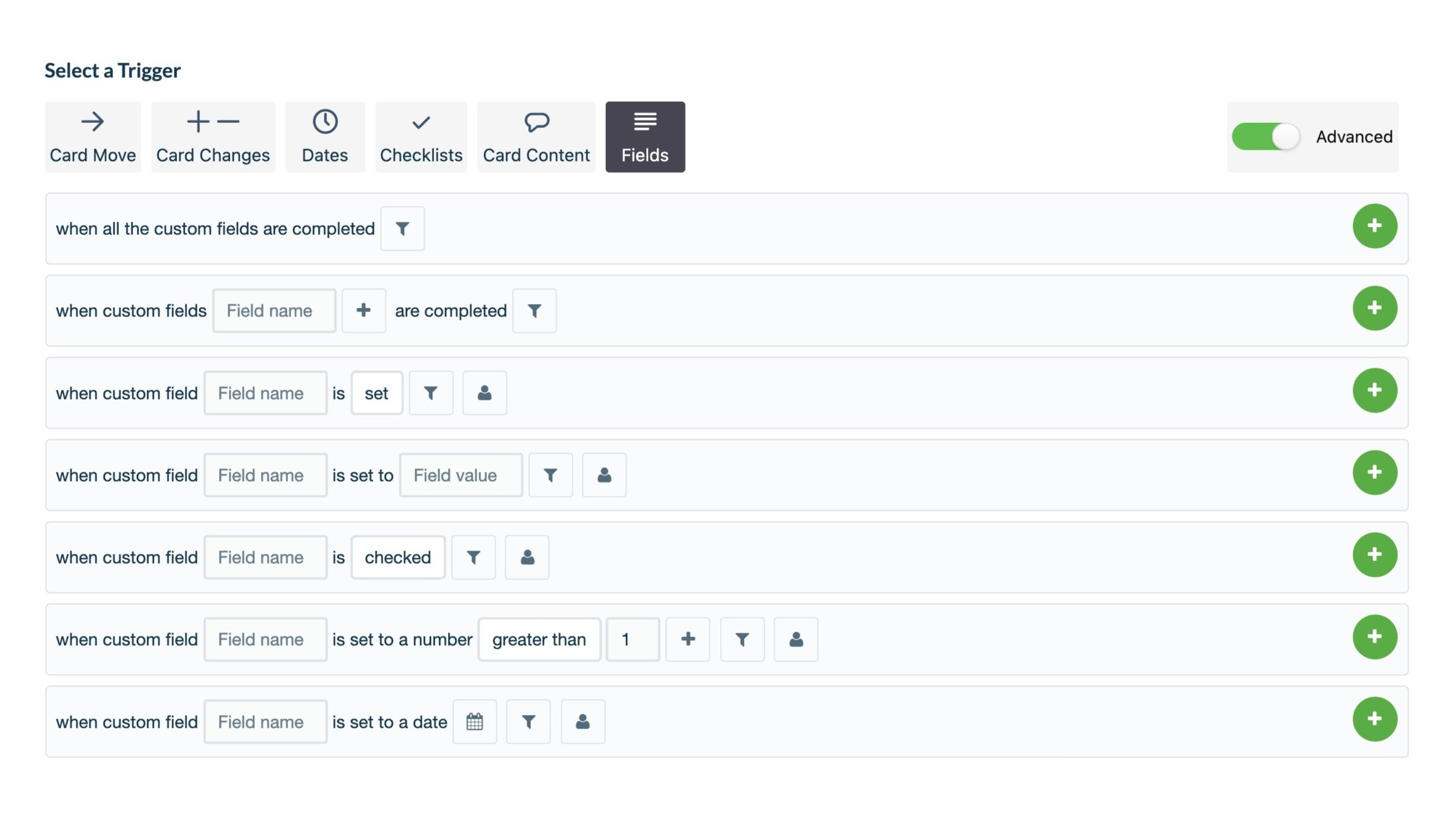
Automation is one of Trello’s useful productivity features.
Users can create automated rules and actions that perform repetitive tasks. For example, automation can move cards, assign members, add labels, create recurring tasks, or trigger other actions based on defined conditions.
This can save time for teams that repeatedly perform the same workflow steps.
Power-Ups
Trello’s Power-Ups allow users to extend the functionality of their boards.
Power-Ups can add features and integrations related to calendars, communication, development, time tracking, reporting, and other workflows.
This gives teams more flexibility without changing the basic Trello board structure.
Templates
Trello provides templates that can help users start projects without building every board from scratch.
Templates can be useful for workflows such as project management, content planning, employee onboarding, product development, marketing campaigns, and personal productivity.
Team Collaboration
Trello supports collaboration through shared boards, comments, assignments, mentions, attachments, and task updates.
Team members can work together on the same project while keeping task-related communication connected to individual cards.
Integrations
Trello integrates with a variety of third-party applications and Atlassian products.
Teams can connect Trello with tools used for communication, calendars, development, file management, productivity, and other business workflows.
Mobile Apps
Trello is available on mobile devices, allowing users to create tasks, update cards, review boards, add comments, and manage projects while away from their computers.
Trello Pros
- Simple and easy-to-use interface
- Excellent visual project organization
- Flexible boards and cards
- Useful Kanban workflow
- Easy task assignment
- Built-in checklists and due dates
- Automation capabilities
- Power-Ups and integrations
- Useful project templates
- Collaboration features
- Free plan available
- Mobile apps
Trello Cons
- Advanced project management can require additional setup
- Some features are limited to paid plans
- Large boards can become difficult to manage
- Reporting is less comprehensive than some enterprise platforms
- Complex projects may require multiple Power-Ups
- Not every workflow fits the card-and-board approach
Trello Pricing
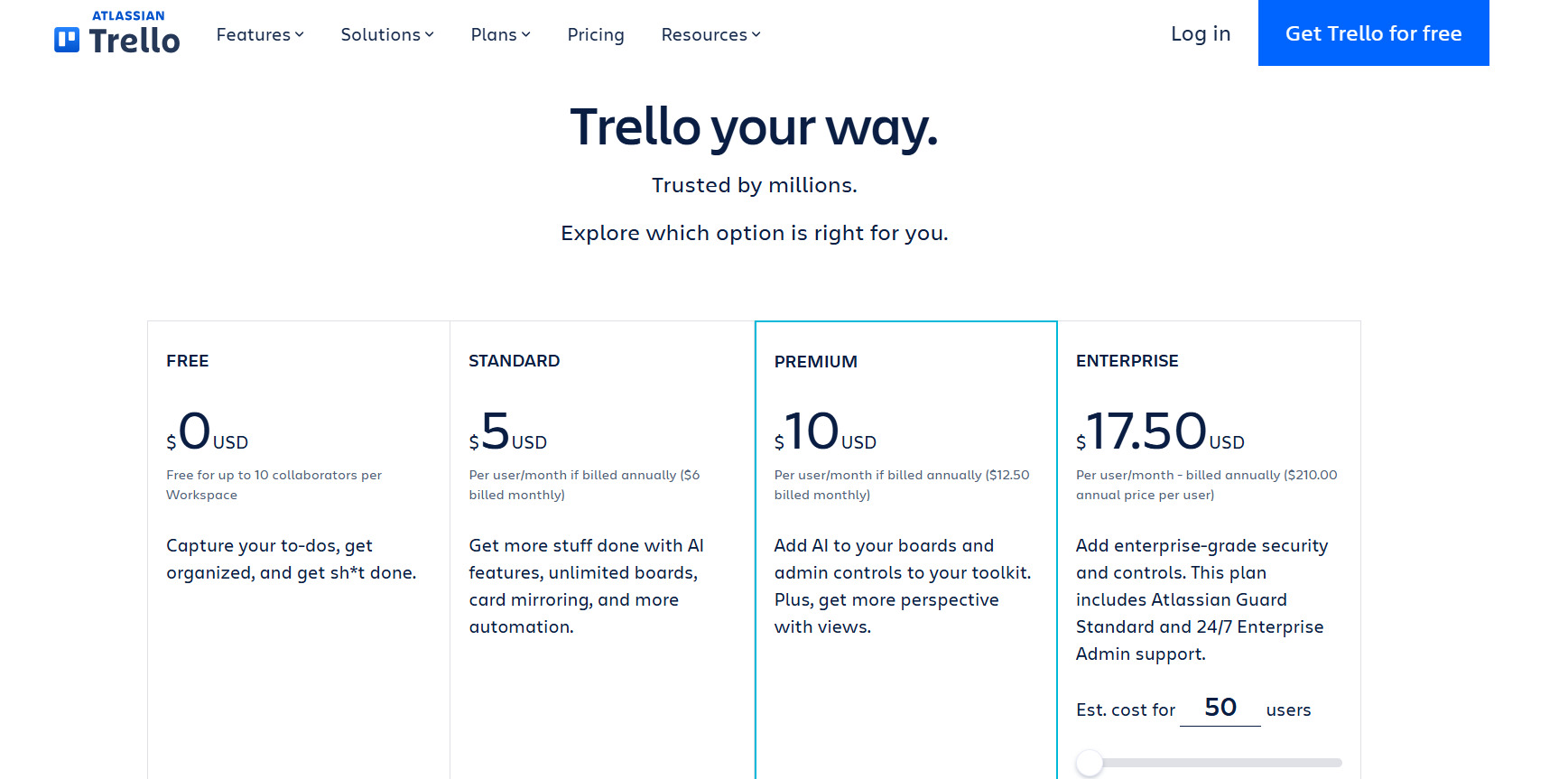
Trello offers several plans designed for different types of users and teams, including a free option and paid plans.
The Free plan is designed for individuals or small teams and includes core board and task-management functionality. Paid options such as Standard, Premium, and Enterprise provide additional features, workspace capabilities, views, administration tools, security options, and other advanced functionality.
Pricing and feature limits can change, so businesses should check Trello’s current pricing page before choosing a plan.
For users with straightforward project-management needs, the free plan can be a useful starting point. Teams requiring advanced views, administration, automation, or enterprise controls may need a paid subscription.
Who Is Trello Best For?
Small Teams
Small teams can use Trello to organize projects, assign tasks, manage deadlines, and collaborate without needing a complicated project management system.
Content Teams
Trello works well for content calendars and editorial workflows. Teams can create cards for articles, videos, social posts, or other content and move them through different production stages.
Marketing Teams
Marketing teams can use Trello for campaign planning, task management, content production, event planning, and other workflows.
Individuals
Individuals can use Trello for personal productivity, task lists, planning, goal tracking, and organizing personal projects.
Remote Teams
Because Trello is cloud-based and supports collaboration, it can be useful for distributed teams that need a shared view of ongoing work.
Trello Alternatives
Trello competes with a wide range of project and work-management platforms.
Asana offers more structured project management and task planning features. monday.com provides customizable workspaces, dashboards, automations, and multiple project views. ClickUp combines task management with documents, goals, dashboards, and other productivity features. Notion focuses on combining documentation, databases, knowledge management, and project workflows.
Trello’s main difference is its straightforward visual board experience, which can be easier to understand for teams that prefer a simple Kanban-style workflow.
Is Trello Worth It?
Trello can be a useful project management solution for individuals and teams that want a simple visual way to organize work.
Its board-and-card system is easy to understand, while features such as automation, Power-Ups, templates, checklists, and additional views provide room for more advanced workflows.
However, teams managing highly complex projects may need more sophisticated resource management, reporting, dependency management, or planning features than Trello’s basic board structure provides.
Final Verdict
Trello remains a straightforward and flexible option for visual project management. Its combination of boards, cards, checklists, due dates, automation, integrations, and collaboration tools makes it useful for a variety of personal and professional workflows.
Its biggest advantage is simplicity. Users can create a board and begin organizing tasks without spending a significant amount of time learning the platform.
For individuals, small teams, marketing groups, content teams, and businesses that prefer visual workflows, Trello is worth considering. Larger teams with highly complex project requirements may want to compare it with more comprehensive work-management platforms before making a decision.
